What your AI assistant sees and touches in your company folders
A test any owner can request before connecting an AI assistant to Drive or SharePoint, to check what each person sees and what the assistant can do.
Uhorizon AI Team · October 22, 2026 · 9 min read
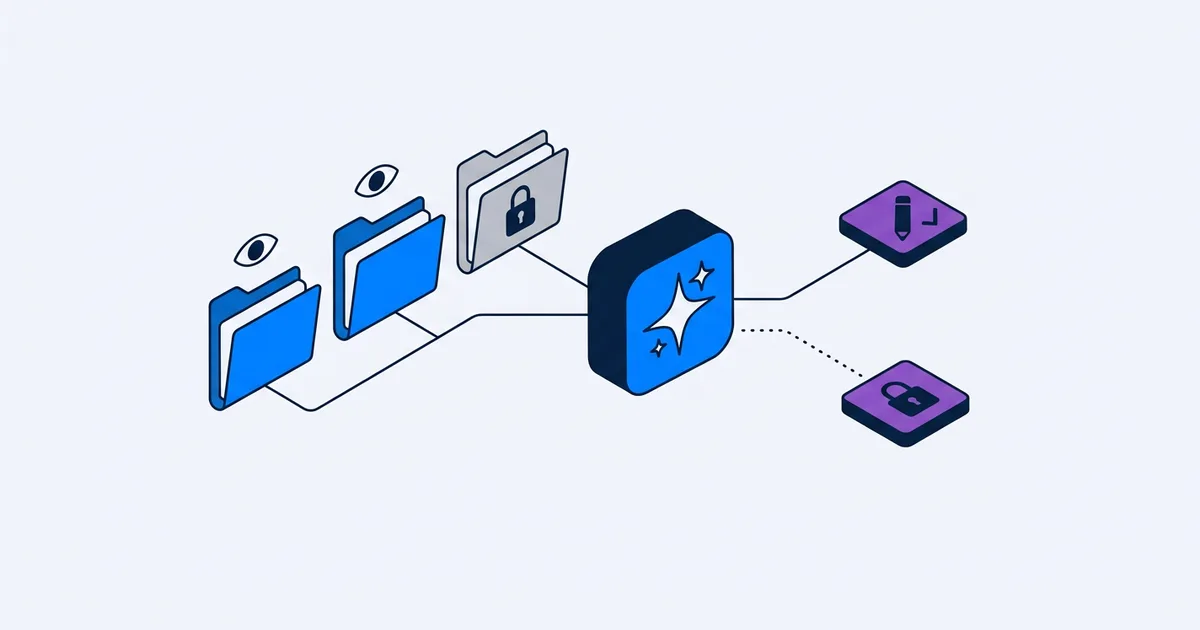
Every time a company opens its folders to someone new, whether an employee, a vendor or another system, the first question is who will see what. Connecting an AI assistant to Drive or SharePoint raises the same question, and it is a concern that comes up when setting up the assistant's licenses and permissions.
The good news is that this concern can be turned into a concrete test. Any owner can ask for it without a technical background, and whoever installs the assistant should be able to show it. This article covers the two questions worth answering before you connect it (what it can see and what it can do), the test for each one, and why it is worth repeating every time you connect a new tool.
Each person should get from the assistant only what they can already see in the folders
When someone asks the assistant a question, it searches the documents you connected and answers with what it finds. The real question is which permissions it searches with.
There are two ways to handle them. The first is to copy the permissions once and refresh them every so often. The second is to check them against the original folder every time someone asks. AWS explains this in a post from October 7, 2026: if permissions are copied, a person whose access you removed may keep seeing that document for a while, until the next refresh. That is why it recommends verifying permissions directly with the source at query time.
Ask for the second approach, with permissions checked at the moment of each question.
The assistant should be limited to the actions, destinations and data you authorized
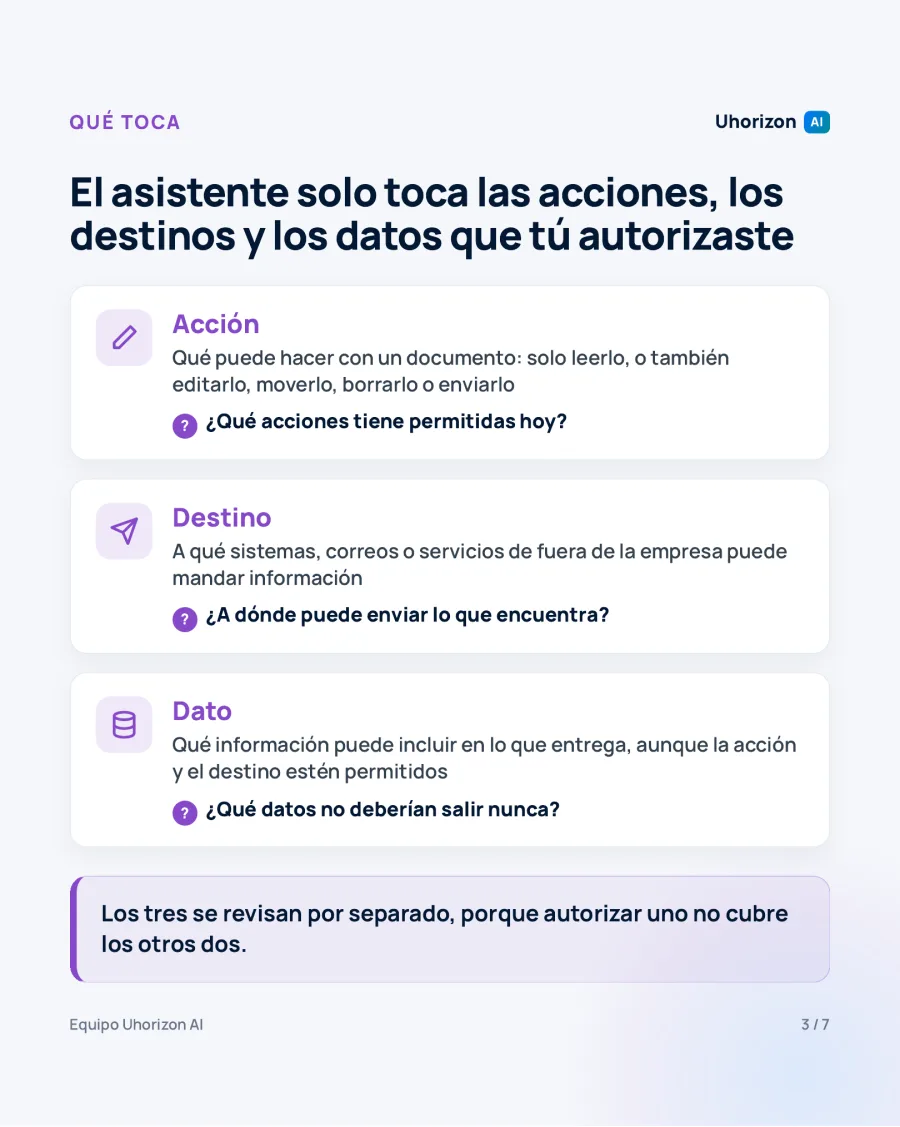
Seeing is half the question. The other half is what the assistant can do with what it sees, and there are three things to review separately:
- The action. What it can do with a document: only read it, or also edit, move, delete or send it. The question for whoever installs it is which actions it is allowed to take today.
- The destination. Which systems, email addresses or outside services it can send information to. The question is where it can send what it finds.
- The data. What information it can include in what it delivers, even when the action and the destination are allowed. The question is which data should never leave.
They are reviewed separately because authorizing one of the three does not cover the other two. Being able to write to an outside service says nothing about what information should be sent there.
Test what it sees with two people asking the same question
This is the test we propose, and it works with any assistant:
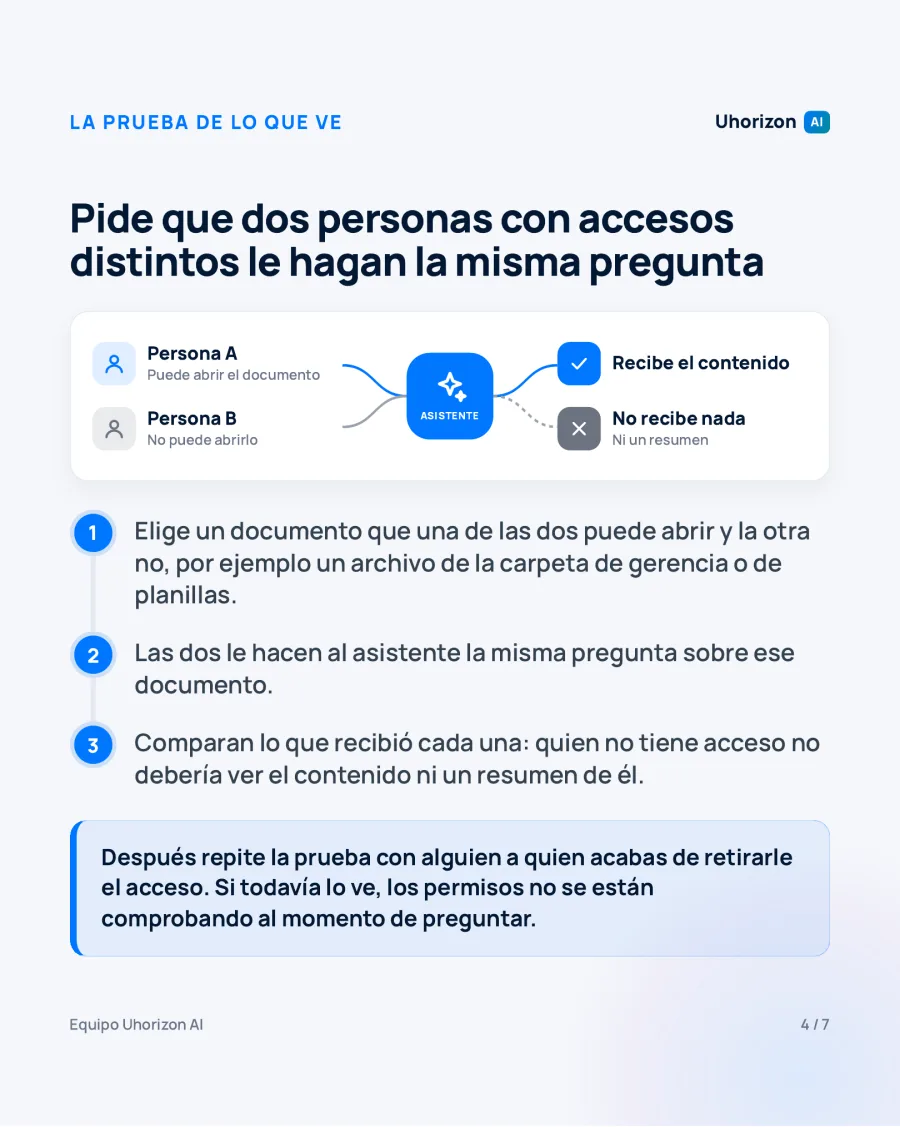
- Pick a document that one person can open and another cannot, for example a file in the management or payroll folder.
- Both ask the assistant the same question about that document.
- They compare what each one received. The person without access should not see the content or a summary of it.
Then repeat the test with someone whose access to that document you just removed. If they can still see it, permissions are not being checked at the moment of the question, which is exactly the window AWS describes.
Test what it can do by watching a blocked action
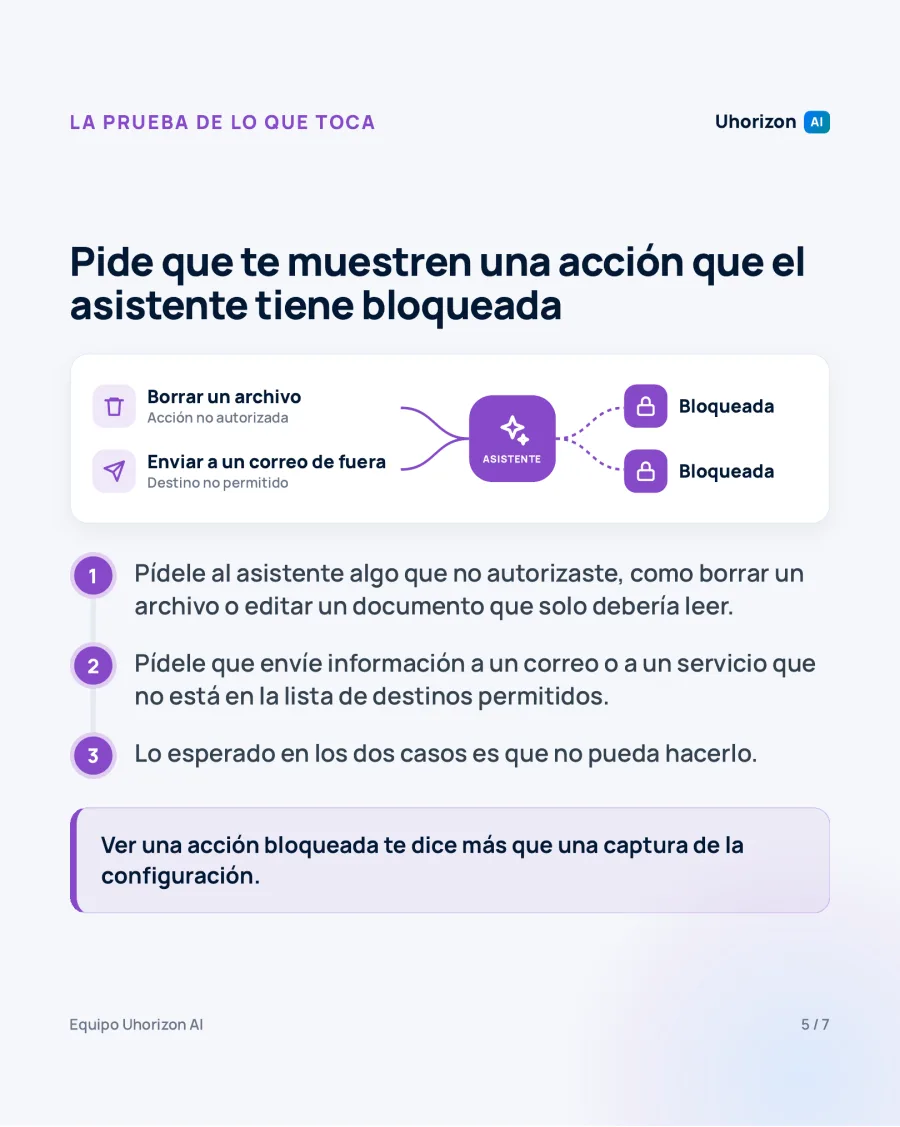
A list of permissions on screen shows what was configured, and a test shows what happens when someone tries. Ask the assistant to do something you did not authorize, such as deleting a file or editing a document it should only read. Also ask it to send information to an email address or a service that is not on the list of allowed destinations. In both cases, the expected result is that it cannot do it.
Watching a blocked action tells you more than a screenshot of the settings.
Three vendors handle permissions differently and an open standard lists them as a risk
The logic of the test applies to any assistant because they all share similar features, and each vendor handles permissions in its own way:
- AWS checks permissions at the source at query time, and explains that copying permissions leaves revoked access visible for a while.
- Anthropic, the company behind Claude, in its October 8, 2026 guide to automating tasks with agents, gives them read-only access, separate credentials and a spending cap per run.
- Google, in its October 8, 2026 announcement, gives its agent its own identity, with its own permissions and isolated from other systems.
And OWASP, an open foundation focused on application security, includes this problem in its list of risks for applications built on language models (LLM08:2025). It warns that inadequate or misaligned access controls can lead to unauthorized access to sensitive information, and recommends that search respect each user's permissions.
We do not recommend any of these approaches over the others. The question for your vendor is which one it uses and how you can check it. A recent example: on October 6, 2026, Anthropic announced connectors, still in beta, that let Claude work inside Google Docs, Sheets and Slides, with availability and permissions that vary by plan, and that is why it pays to ask what it can see and do before turning them on.
Test every new connection again before you turn it on
Folders can be the first connection, and then come email, the calendar or the CRM. These connections are added through a connector, which is the piece that links the assistant to another tool, or through a plugin, which is a package that adds new features to the assistant and is sometimes built by another company. Each connection adds to what the assistant can see, and often to what it can do: with email connected it can send a message, with the calendar it can create an event, and with the CRM it can change a record. That is why the two tests in this article are repeated for each one before you turn it on.
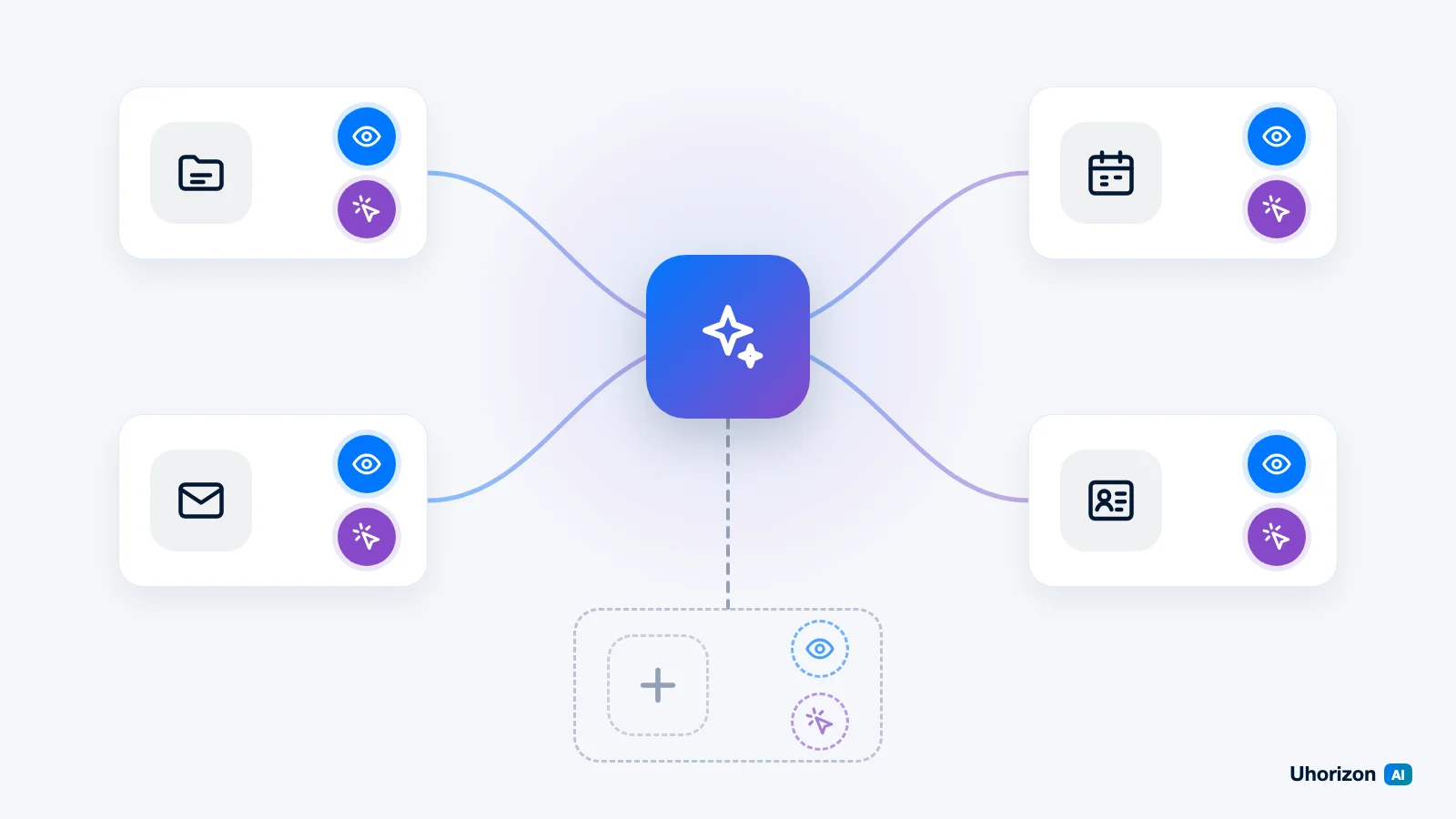
The next question is who can turn a connection on, and the answer depends on the tool and the plan. This is what the admin documentation of four business assistants says, as of October 19, 2026:
- ChatGPT, from OpenAI. On the Enterprise plan, new apps stay off until an admin enables them, except for a set that comes enabled when the workspace is created, and on the Business plan they come on and the admin can disable them. On both, the admin decides which read and write actions each app can take.
- Claude, from Anthropic. On the Team and Enterprise plans, an account owner enables each connector, and then each person has to sign in with their own account. The owner can also limit the actions, for example letting the assistant read from a service without writing to it.
- Microsoft 365 Copilot. The admin chooses which agents and plugins are allowed in the organization, and each person can only use the ones the admin allowed and that they installed or were assigned.
- Gemini for Google Workspace. The setting that lets Gemini use Gmail, Calendar and Drive is on by default, so each person can connect those apps, and the admin can turn it off.
The practical step is to find out which case applies at your company: whether each person can turn on their own connections or only the admin can, and who decides which ones are allowed.
On what it sees, the documentation of the four vendors describes the same approach: the assistant enters the connected tool with the permissions of the person using it, so by design it only reaches what that person can already open. The test above is how you confirm it in practice. That keeps someone with limited access from seeing more than they should, and it also means a person with broad access gives the assistant that same reach. Microsoft, for its part, recommends using the permissions in its own tools, such as SharePoint, so each person has the access that matches their role, and reading the terms of use of every agent you add to see how it handles the organization's data.
No source measures how often this kind of leak happens
None of the sources we cite measure how often this kind of leak happens in real companies, so we will not give you a number. What we can tell you is that the test is simple, runs on your own documents and gives you an answer you can see for yourself before you connect anything. And you can repeat it every time you connect something new, such as email, the calendar or the CRM.
If you are about to connect the assistant to your folders, let's talk for 30 minutes and prepare the test with your team.
Sources
- AWS, October 7, 2026. Rethinking access control for RAG with Amazon Quick and Amazon Bedrock
- Anthropic, October 8, 2026. Building effective agent automations
- Google Cloud, October 8, 2026. Welcome to Gemini at Work 2026
- Anthropic, October 6, 2026. Claude now works with Google Docs, Sheets, and Slides
- OWASP. LLM08:2025 Vector and Embedding Weaknesses
- OpenAI, accessed October 19, 2026. Admin controls, security, and compliance for plugins and apps
- OpenAI, accessed October 19, 2026. Company knowledge in ChatGPT (Business, Enterprise, and Edu)
- Anthropic, accessed October 19, 2026. Use connectors to extend Claude's capabilities
- Microsoft, updated October 8, 2026. Data, Privacy, and Security for Microsoft Copilot
- Microsoft, updated October 12, 2026. Govern Microsoft 365 Copilot plugin access and connections
- Google, updated October 13, 2026. Control Gemini App access to Workspace services
- Google, updated October 6, 2026. Generative AI in Google Workspace Privacy Hub