In what order to grant permissions to a connected AI assistant
Read, write with approval and act on its own: three levels for connecting an AI assistant to email, the CRM or folders, and the control each one needs.
Uhorizon AI Team · October 26, 2026 · 7 min read
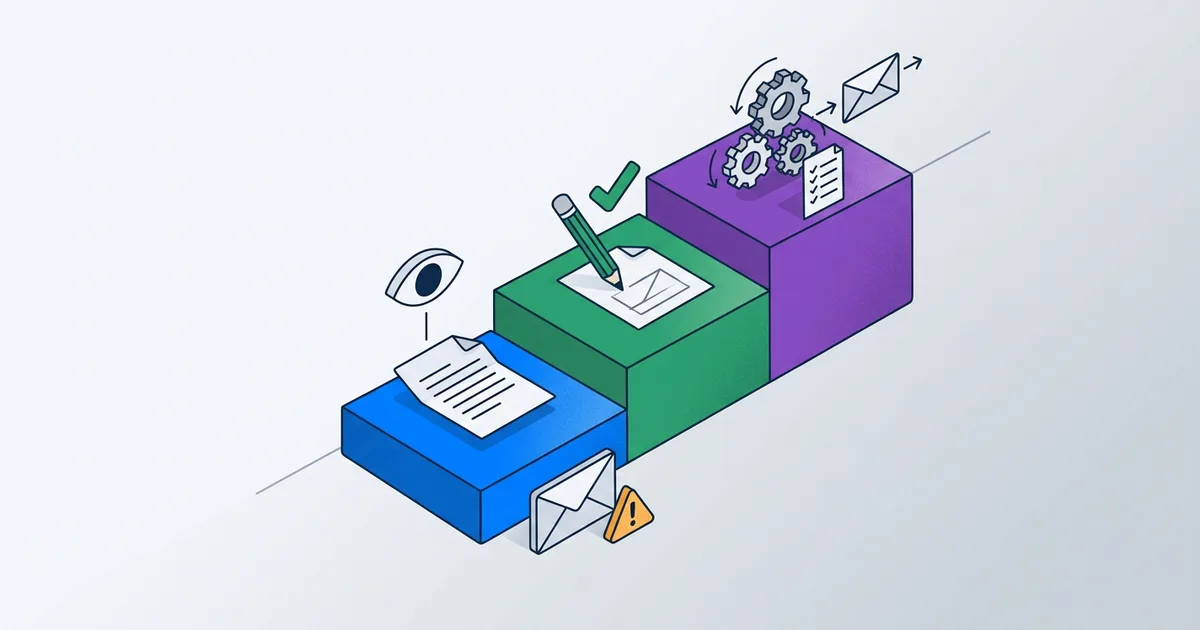
When someone new joins a company, they don't get the bank passwords or sign the contracts on day one. First they learn how the work gets done, then they propose and someone reviews, and over time they decide on their own in the areas where they've proven themselves. With an AI assistant, it pays to follow the same order when you connect it to email, the CRM or the company's folders.
This article is for whoever manages the assistant's licenses at their company and is about to connect it to another tool. It explains why the order matters, the three levels in which permissions are opened, the control each level needs and what the ChatGPT and Claude plans offer today for the highest level.
The risk shows up when the assistant reads outside messages and can also send
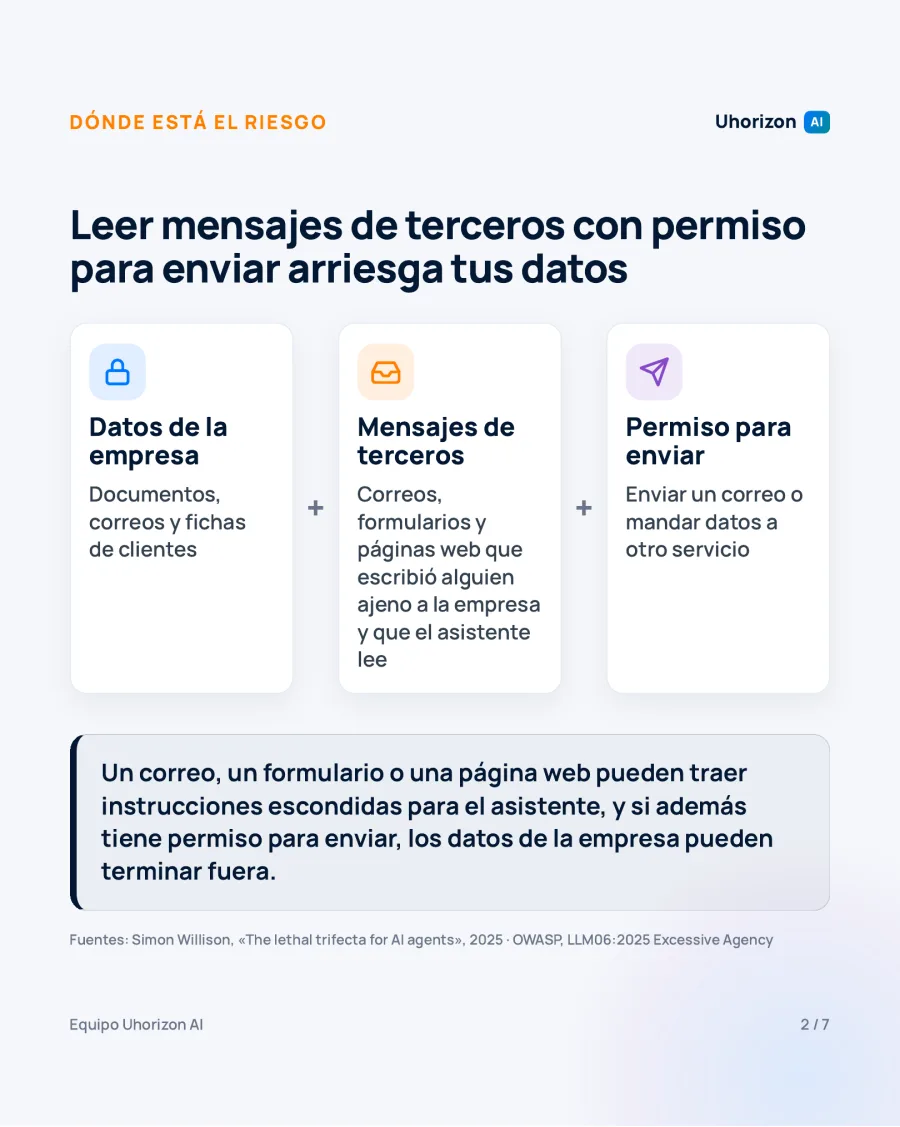
A connection brings three things together. The first is company data, such as documents, emails and customer records. The second is outside messages, meaning the emails, forms and web pages written by someone outside the company that the assistant reads. The third is permission to send, whether that's an email or data to another service.
The risk lies in the combination of all three. An email, a form or a web page can carry hidden instructions for the assistant, and if it also has permission to send, company data can end up outside the company. Simon Willison called this combination "the lethal trifecta" in June 2025. OWASP, a nonprofit foundation that publishes open software security guidance, lists the assistant's excessive agency among the top ten risks of generative AI applications (LLM06:2025), and NIST, the US standards institute, calls instructions hidden in an email or a page indirect prompt injection.
There's a documented case: in 2025, researchers showed that a single crafted email could pull data out of Microsoft 365 Copilot without the user doing anything, and Microsoft fixed it.
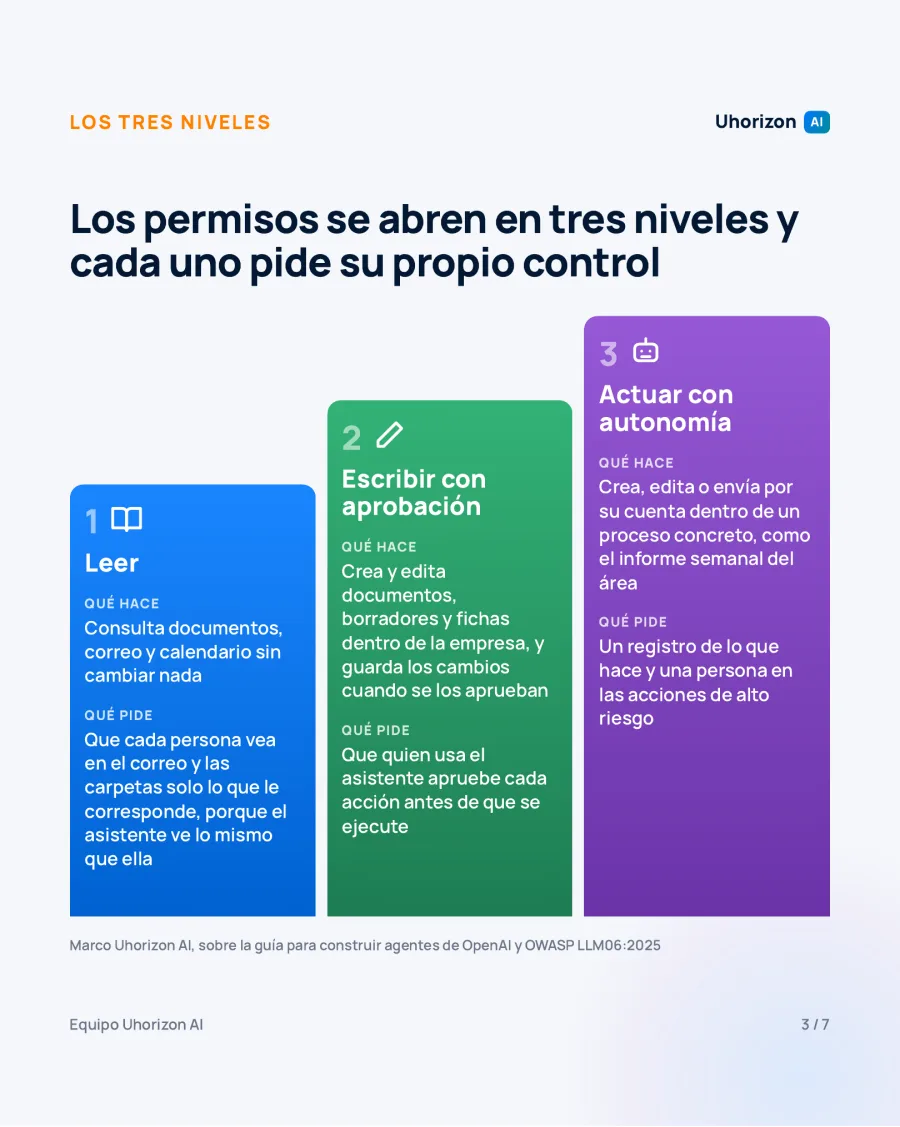
Permissions open in three levels, and each level needs its own control
The three levels are our own synthesis. They build on OpenAI's guide to building agents, which recommends rating each tool by its risk and keeping a person in the loop for high-risk ones, and on the OWASP list. The examples at each level are illustrative.
- Read. The assistant looks up documents, email and calendar without changing anything. This level calls for each person to see only what they're entitled to in email and folders, because the assistant works with the user's permissions and sees exactly what that person sees.
- Write with approval. The assistant creates and edits documents, drafts and records inside the company, and saves the changes once they're approved. This level requires that the person using the assistant approves each action before it runs.
- Act on its own. The assistant creates, edits or sends on its own within a specific process, such as the department's weekly report. This level requires a log of what it does and a person in the loop for high-risk actions.
At the second level, the admin decides what the assistant does on its own and what gets blocked
To move from the first level to the second, the admin sorts the assistant's actions into three groups:
- Runs on its own. Search documents, summarize an email or check the calendar.
- Needs approval. Create a draft, update a customer record or move a file inside the company.
- Blocked. Delete, pay or send information outside the company.
The rule we use to sort them is simple: actions that can be undone and stay inside the company go through with approval, and actions that can't be reversed or take information out of the company are blocked.
The tools already allow this. ChatGPT and Claude let the admin authorize read-only access for each connected tool, and in Claude each tool can be set to always allow, ask for approval or block. Microsoft's documentation, updated on October 14, 2026, describes the same per-tool control for Copilot, which is rolling out to organizations gradually. And in Claude Enterprise, every new user role starts with all of its connections set to "needs approval."
Business and Team plans don't keep the log the third level requires
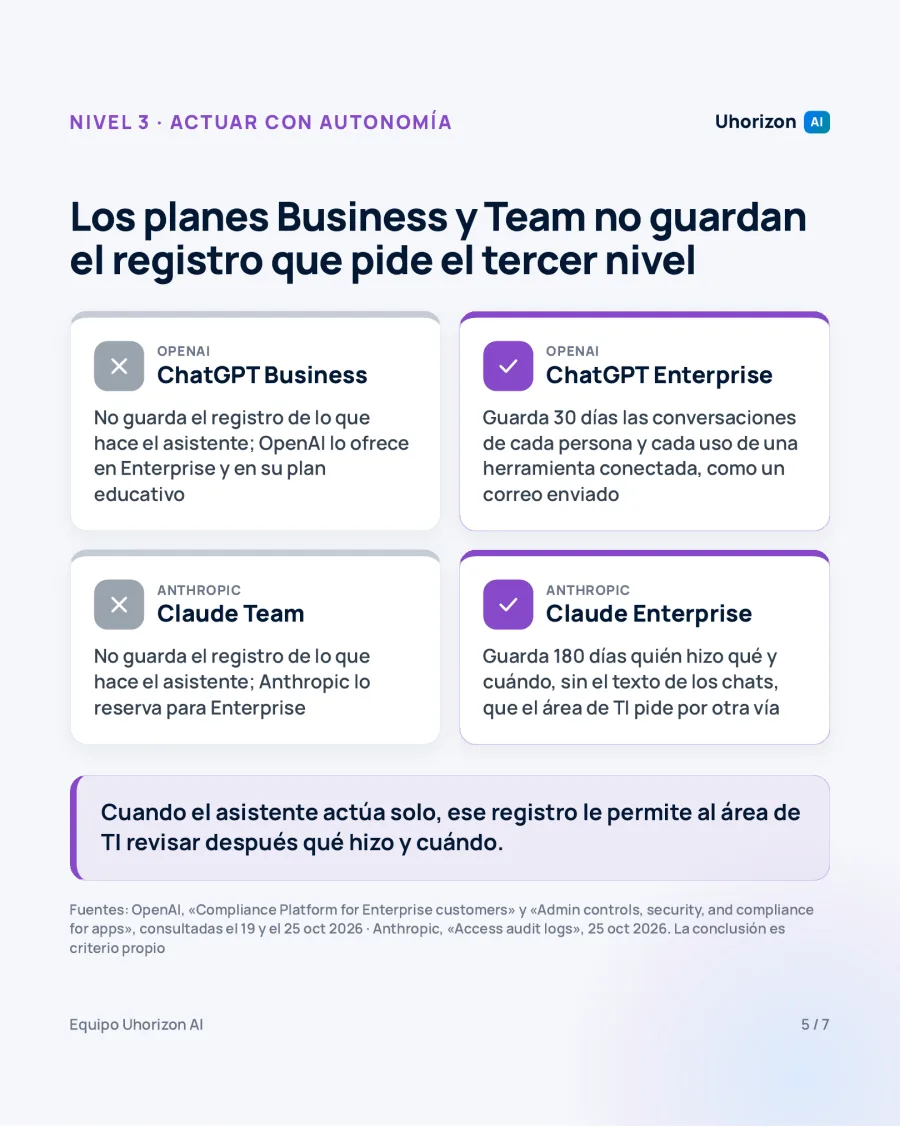
When the assistant acts on its own, the control that matters is being able to check afterward what it did and when. That record, which vendors call an audit log, doesn't come with every plan. Here's what each vendor's documentation says, as checked between October 19 and 25, 2026:
- ChatGPT Business. Doesn't keep a log of what the assistant does. OpenAI offers it in Enterprise and in its education plan.
- ChatGPT Enterprise. Keeps each person's conversations and every use of a connected tool, such as a sent email, for 30 days.
- Claude Team. Doesn't keep a log of what the assistant does. Anthropic reserves it for Enterprise.
- Claude Enterprise. Keeps who did what and when for 180 days, without the text of the chats, which IT has to request separately, for example through the account's data export. Anthropic's page doesn't specify which actions in a connected tool show up among the logged events.
Our reading of these pages is that the third level calls for a plan that keeps that log, because it's what lets IT review afterward what the assistant did and when. Plans and their controls change fast, so check your vendor's page before you decide.
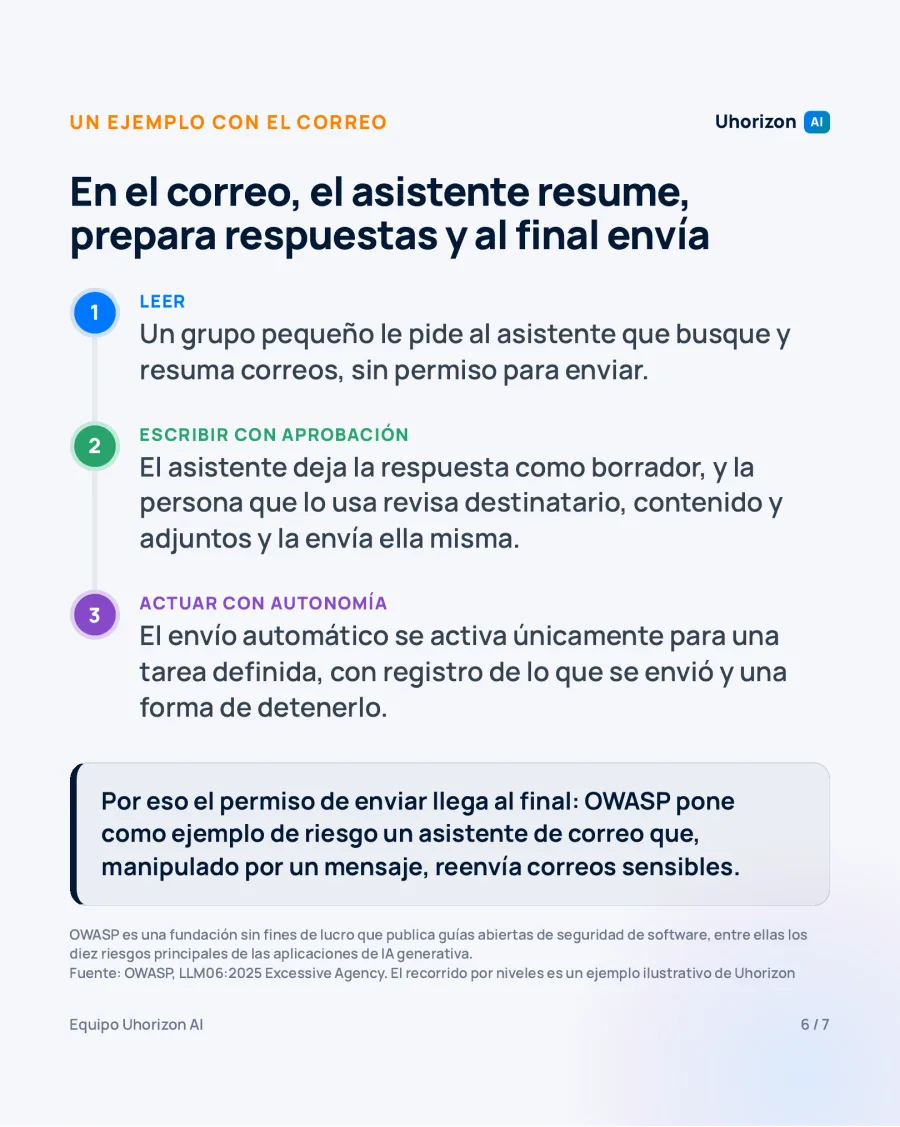
In email, the assistant summarizes, drafts replies and finally sends
Email works as the example because it brings the three things from the first section together in a single tool. This walkthrough is illustrative, and the same logic applies to documents, the CRM or folders:
- Read. A small group asks the assistant to search and summarize emails, with no permission to send.
- Write with approval. The assistant leaves the reply as a draft, and the person using it checks the recipient, content and attachments and sends it themselves.
- Act on its own. Automatic sending is turned on only for one defined task, with a log of what was sent and a way to stop it.
That's why permission to send comes last. OWASP gives as an example of risk an email assistant that, manipulated by a message, forwards sensitive emails.
Each area of the company can be at a different level
For example, one team may have been working with approved drafts for months while another is only now connecting its email to read. That's why it makes sense to decide the level team by team, and plans for organizations allow it with role-based controls in ChatGPT and Claude, and by organizational unit in Gemini.
Start with read-only permissions and move up a level once the rules that give you confidence are clear. If you're about to connect your assistant to another tool, let's talk for 30 minutes and choose where to start.
Sources
- Simon Willison, June 16, 2025. The lethal trifecta for AI agents
- OWASP. LLM06:2025 Excessive Agency
- NIST, July 2024. AI 600-1, Generative AI Profile
- Reddy and Gujral, September 6, 2025. EchoLeak, the first real-world zero-click prompt injection exploit in a production LLM system
- OpenAI. A practical guide to building agents
- OpenAI, accessed October 19 and 25, 2026. Admin controls, security, and compliance for plugins and apps
- OpenAI, accessed October 19, 2026. Compliance Platform for Enterprise customers
- OpenAI, accessed October 19, 2026. Role-based access controls (RBAC)
- Anthropic, accessed October 19, 2026. Use connectors to extend Claude's capabilities
- Anthropic, accessed October 19, 2026. Set up role-based permissions on Enterprise plans
- Anthropic, accessed October 25, 2026. Access audit logs
- Microsoft, October 14, 2026. Manage plugins, skills, and MCP servers in Microsoft 365 admin center
- Google, updated October 13, 2026. Control Gemini App access to Workspace services